
January 11, 2026 · 1 min read
How to Use the Sticker Sidebar for Precision Editing
Master the advanced properties of Pins, Routes, and Regions with the contextual sidebar.
By Mapimator Editorial#Tech#Tutorial#Productivity
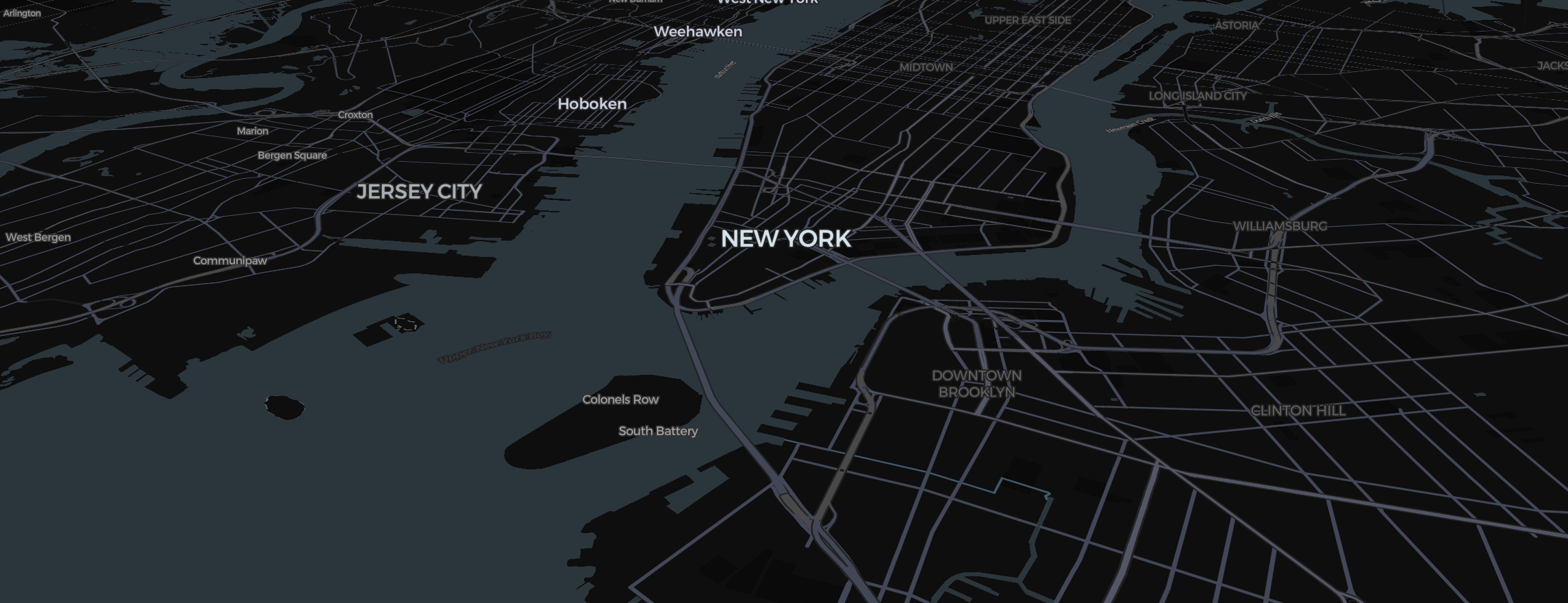
The Mapimator Studio is designed for speed, but the real power lies in the properties you can't see on the map. Whenever you select a Sticker—whether it's a pin, a route, or a region—the Sticker Sidebar opens on the right.
1. The Power of "Transport Mode"
When a Route is selected, the sidebar lets you change how the line behaves.
- Driving: Snaps to road networks.
- Flight: Creates a Geodesic arc.
- Direct: Connects points with a straight line, perfect for maritime paths.
2. Visual Property Overrides
Don't settle for defaults.
- Stroke Width: Make your routes bold for GTA-style social reels or thin for VOX-style documentaries.
- Dasher: Toggle the Dashed: True option for a tactical, technical look.
- Opacity: Use the slider to make your highlights subtle or strong.
3. Animation Controls
The Sidebar is where you define how a sticker "enters" the scene.
- Draw: Traces a route or border.
- Pulse: Keeps a pin or region subtly glowing, perfect for disease tracking timeline visuals.
- Drop: Makes a pin fall gracefully from the top of the screen.
4. Deleting & Managing
- The sidebar is the safest place to Delete a sticker if it’s buried under other layers.
- You can also Rename the sticker label here, ensuring your project stays organized as you add more Slides.
To ensure your precision edits are reflected in the final output, always professional rendering engine before exporting. This ensures that every stroke width and animation timing is perfectly cached for a crisp, high-definition 4K result.