
February 3, 2026 · 1 min read
Why Mapimator Exports Always Look Professional
An inside look at how our frame-accurate rendering engine ensures your 3D maps are crisp and blur-free.
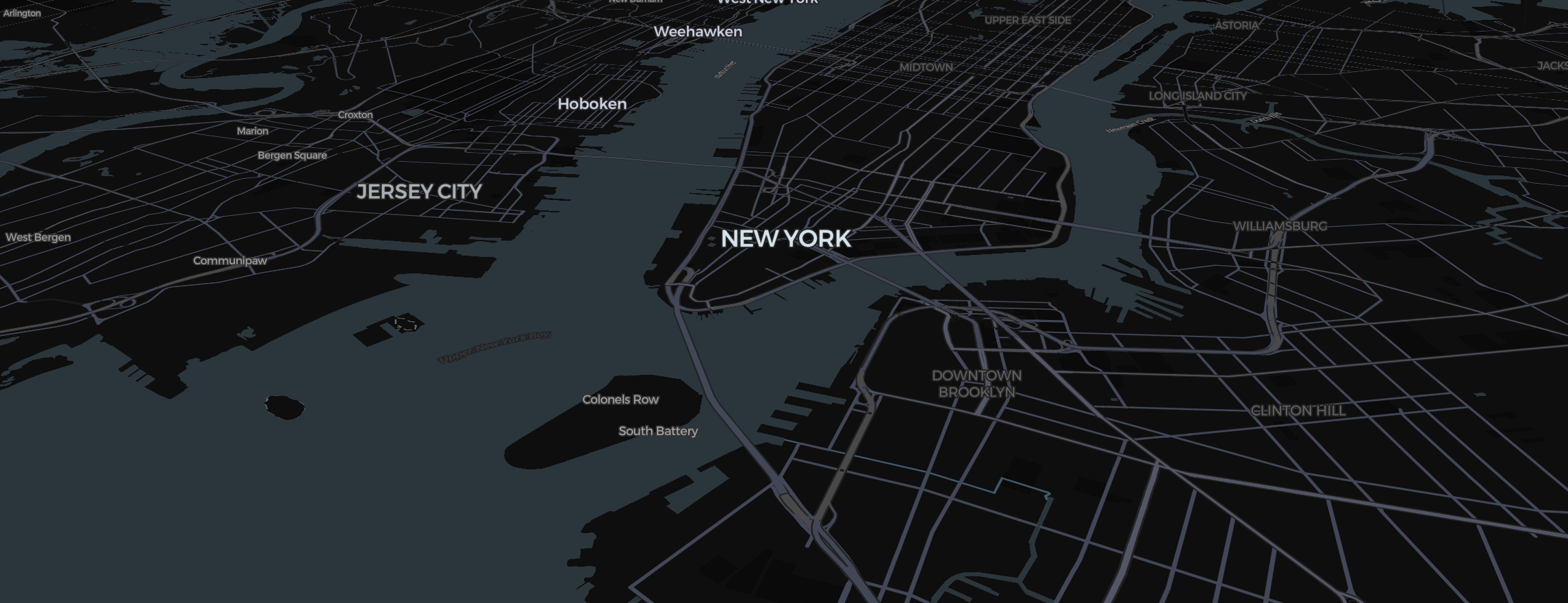
Have you ever wondered why Mapimator videos look so much smoother than a standard screen recording? The secret lies in our Frame-Accurate Rendering Engine, which works behind the scenes the moment you click "Export."
The "Gray Box" Problem
Traditional screen recording tools capture whatever is on the screen right now. If your internet is slow and a map tile hasn't loaded yet, your final video will have a "gray box" or a blurry patch. For premium real estate tours or cinematic travel vlogs, this is unacceptable.
Automatic Optimization
When you start an export, Mapimator enters a specialized state to ensure maximum quality:
- The Smart Cache: The engine automatically "walks through" your storyboard waypoints at high speed.
- The Asset Guarantee: This process forces the 3D map engine to request and download every tile, 3D building model, and label ahead of time.
- The Buffer: By the time we start the actual capture, every pixel is already processed and ready in your computer’s memory.
What to Expect During Export
- The Visual Sweep: You might see the map moving rapidly before the render progress bar starts. Don't worry—this is the engine ensuring all 3D data is perfectly loaded.
- Stability: For the best results, we recommend not interacting with the map once the export has begun. This allows the engine to capture each frame with 100% accuracy.
- Connection: While the engine is smart, it still relies on your bandwidth to pull 3D data. A stable connection ensures the fastest transition between the setup and the final render.
By automating these technical steps, Mapimator ensures that your story—whether it's a GTA-style route or a global flight—always looks cinema-ready, regardless of your hardware or internet speed.