
January 19, 2026 · 1 min read
How to Map Ship Travel Routes in 3D
Visualizing maritime journeys, from sailing the San Juan Islands to tracking global shipping lanes.
By Mapimator Editorial#Travel#Logistics#Tutorial
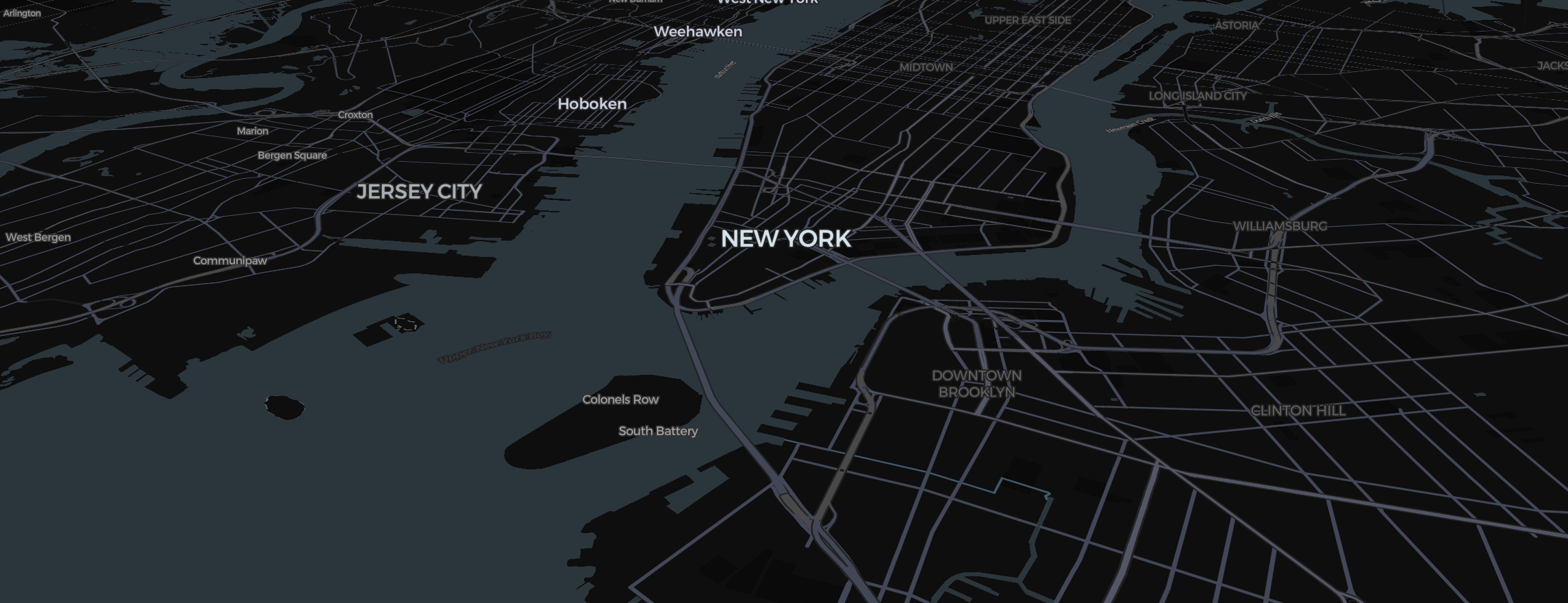
From expedition rowing to global yachting, maritime travel offers some of the most beautiful vistas for map animation. However, ships don't follow roads, and they don't fly in high arcs. Here is how to handle maritime paths in the Studio.
Choosing the Right Line
A ship's path needs to stay on the water.
- Use the Route Tool and set the mode to Direct. This allows you to place waypoints manually along the coast or through a strait (like the Suez Canal).
- If you're navigating around islands, add multiple "Slides" to your Storyboard and place a short route segment for each.
Visualizing the Water
Water looks best in the Satellite or Terrain map styles.
- 3D Depth: Tilt the map to see the bathymetry (depth) of the ocean floor where available.
- Labels: Turn off unnecessary land labels in the Style settings to keep the viewer focused on the maritime path.
Animating the "Wake"
Use the Draw animation on your route. This creates a "trail" behind your ship as it moves.
- Dashed Lines: For a technical "Naval Chart" look, use dashed lines.
- Markers: Replace the standard pin with a custom Image Sticker of a ship or boat for a unique aesthetic.
Whether you're documenting a personal cruise or a business shipping lane, Mapimator’s 3D engine ensures your ocean story is as deep and detailed as the sea itself.