
December 24, 2025 · 1 min read
Tracking Wildlife and Nature: The Terrain Map Guide
How to use topographic maps and 3D terrain to visualize hiking trails and animal migration patterns.
By Mapimator Editorial#Nature#Hiking#Science
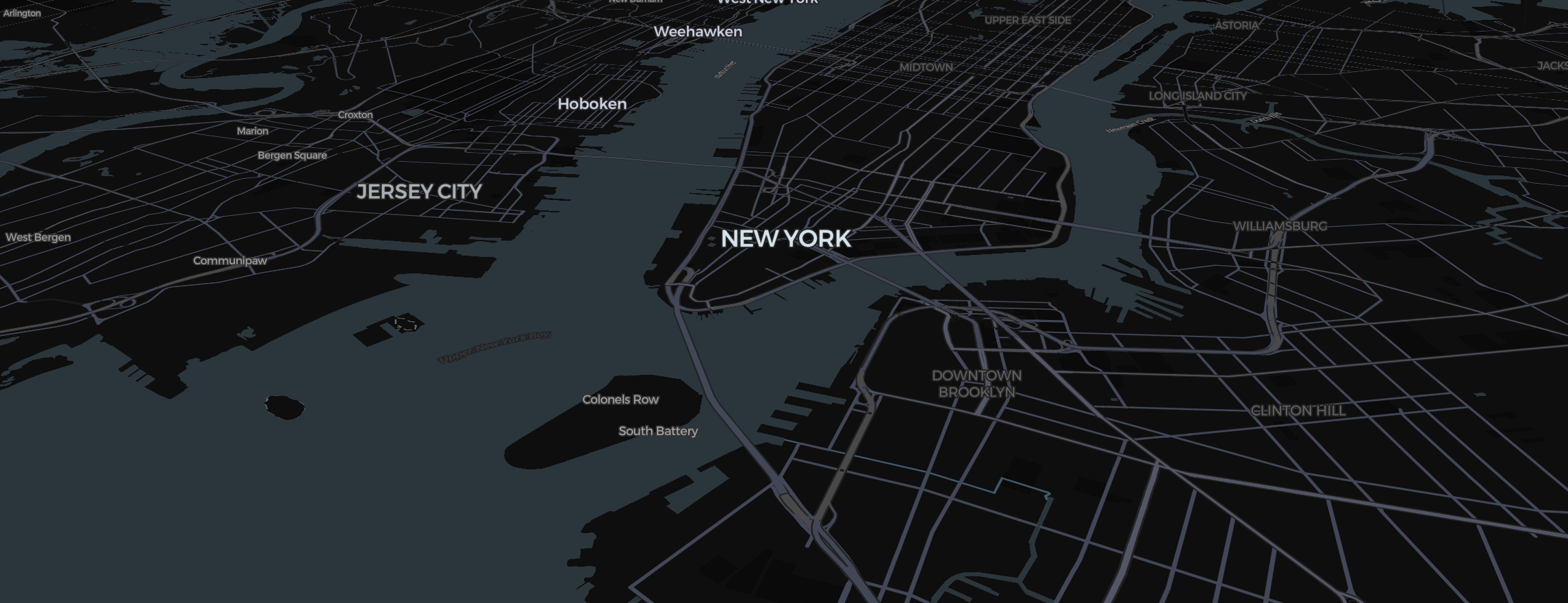
When your story is about the land itself, political boundaries and road names can get in the way. For researchers tracking bird migrations or hikers sharing their latest trail, the Terrain style is the ultimate choice.
Bringing Depth to Your Story
The topography of a region like the Rikoti Pass in Georgia or the mountains of Japan deserves to be seen in 3D.
- Open the map controls (the style thumbnail at the bottom left of the map) and, under View, turn on 3D Terrain. It works with every style, Terrain included.
- Hold Right Click + Drag to pitch the camera. You’ll see the ridges and valleys rise up from the map.
- Toggle the Globe Projection off for short trails (like ship travel through islands). This maintains more accurate 1:1 scale for small areas.
Plotting the Path
For hiking or biking, use the Route Tool in Direct Mode.
- Manually place waypoints along the ridge of the mountain.
- Use a high-contrast color like Orange or Green to make the route pop against the natural textures.
- Set the animation type to Draw so the trail "walks" with your story.
Contextual Pins
Instead of just a pinpoint, use the Marker Style.
- Add a pin for the "Summit" or "Observation Point."
- Use the Show Label feature to include the elevation (e.g., "5,000m").
Always professional rendering engine before exporting to ensure that every ridge and valley is captured with maximum precision.