
January 27, 2026 · 1 min read
How to Animate Drone-Style Sweeps over Mountains
Master the art of high-altitude camera movement for breathtaking 3D landscape visuals.
By Mapimator Editorial#Nature#Camera-Work#3D
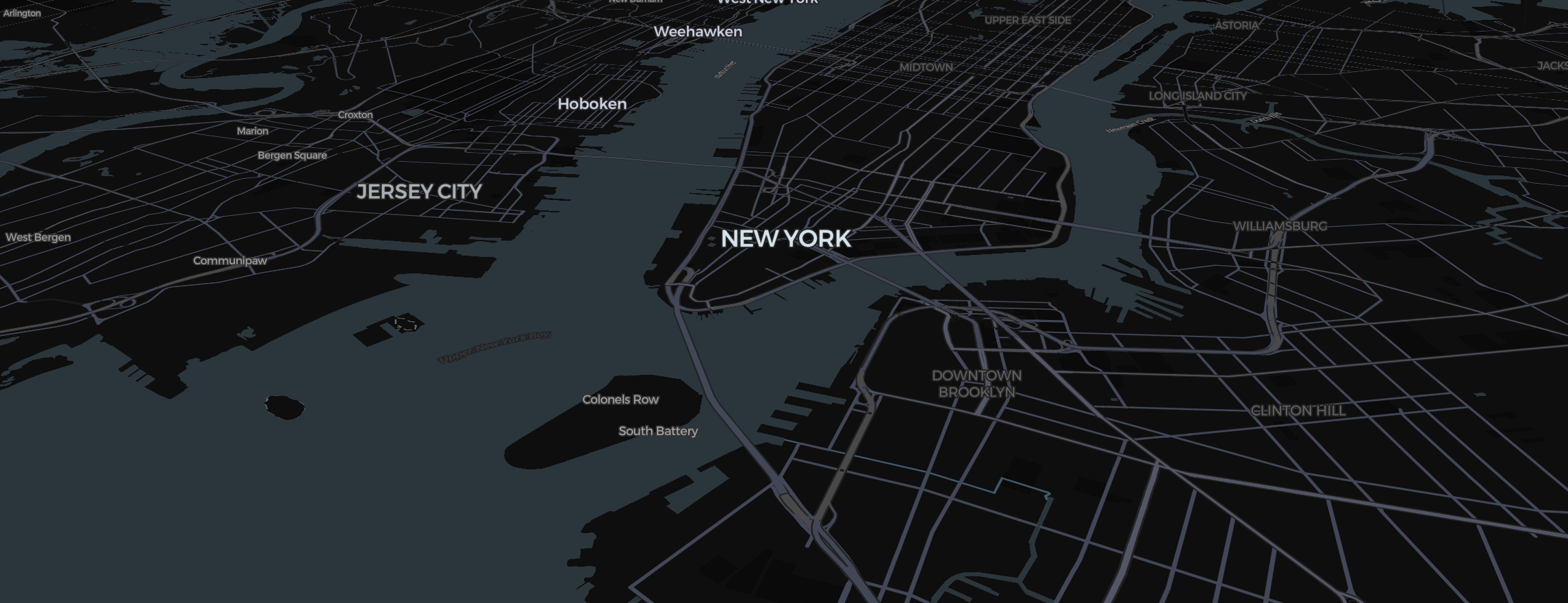
Drones have revolutionized how we see mountain ranges like the Himalayas or the Japanese Alps. In the Mapimator Studio, you can replicate this "aerial sweep" sensation without ever leaving your desk.
Step 1: Enable the Terrain
For mountain sweeps, you need height.
- Open the map controls (the style thumbnail at the bottom left of the map) and, under View, turn on 3D Terrain.
- Pitch the camera (Right Click + Drag) all the way down to a 45-degree angle. This makes the peaks rise up against the horizon.
Step 2: Pitch and Roll
The "Drone Look" is all about moving parallel to the ground.
- Slide 1: Position the camera low on one side of a ridge.
- Slide 2: Move to the other side of the ridge, slightly rotating the view.
- Set the Easing to Smooth. This ensures the camera accelerates and decelerates naturally, mimicking a real drone's momentum.
Step 3: Minimal Data
A drone sweep is about the view, not the data.
- Turn off all labels in the map settings.
- Avoid using Pins or Routes unless essential for the story.
- Let the 3D textures of the rock and snow tell the story.
The High-Resolution Render
Terrain data is high-bandwidth. To ensure your final video doesn't have any blurry tiles:
- Always export at 60 FPS for that smooth "motion blur" feel.
- Allow the Studio to rendering preparation. This ensures every crag and valley is pre-loaded into memory before the first frame is captured.
With these settings, your map animations will feel as immersive as real aerial footage.