
January 21, 2026 · 1 min read
How to Create Vertical Reels for Travel TikTok
Everything you need to know about exporting 9:16 vertical map videos that grab attention.
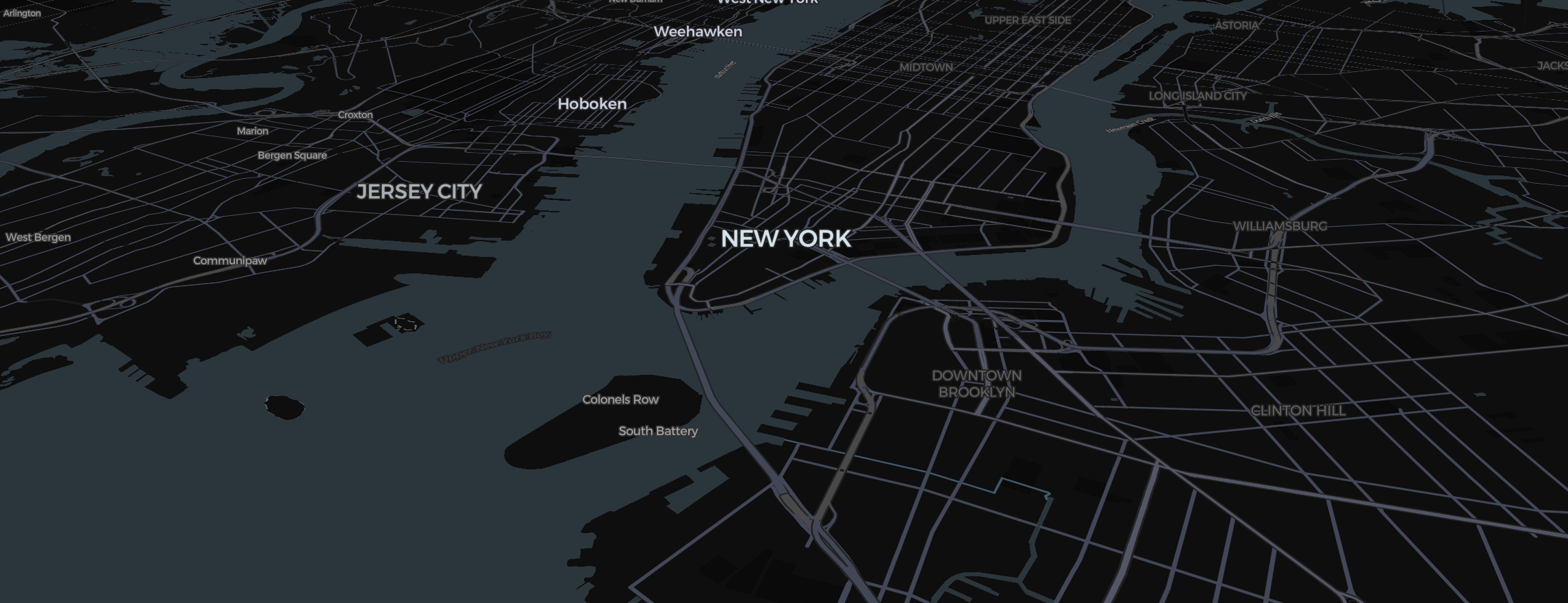
Most people watch travel content on their phones, which means the Vertical 9:16 format is the new gold standard. Converting a cinematic landscape map into a vertical one requires a few tactical adjustments in the Studio.
Step 1: Switch the Canvas
Before you start placing pins, go to the Settings Gear and set the format to Vertical (9:16). This changes your workspace immediately so you can see exactly what will be in the final frame.
Step 2: The Vertical Zoom
The vertical format is narrower, which means things look "closer" at the same zoom level.
- When creating cinematic flights, you’ll need to zoom out a bit more than you would for a TV screen.
- Ensure your GTA-style routes aren't cutting off the edges of the screen.
Step 3: Top-to-Bottom Storytelling
Vertical video naturally favors movements that go up or down.
- Intro: Start at the very top of the world (North Pole) and zoom down to your location.
- Overlays: Place your Text Stickers in the upper or lower third. The center is usually reserved for your Pins and Routes.
Step 4: Exporting for TikTok
TikTok and Reels compression is heavy.
- Always export at 30 FPS. While we support 60, the extra data often causes TikTok to compress your video more aggressively, which can lead to blurriness.
- Use Rendering Preparation to ensure the 3D details of the buildings look "real" even on a tiny phone screen.
Ready to post? Check out our guide on Travel Vlog Hacks to learn more about the perfect camera easing for mobile viewing!