
January 23, 2026 · 1 min read
How to Create Cinematic Orbits around Mountains
Master the 360-degree camera move to showcase peaks like Everest, Fiji, or the Swiss Alps.
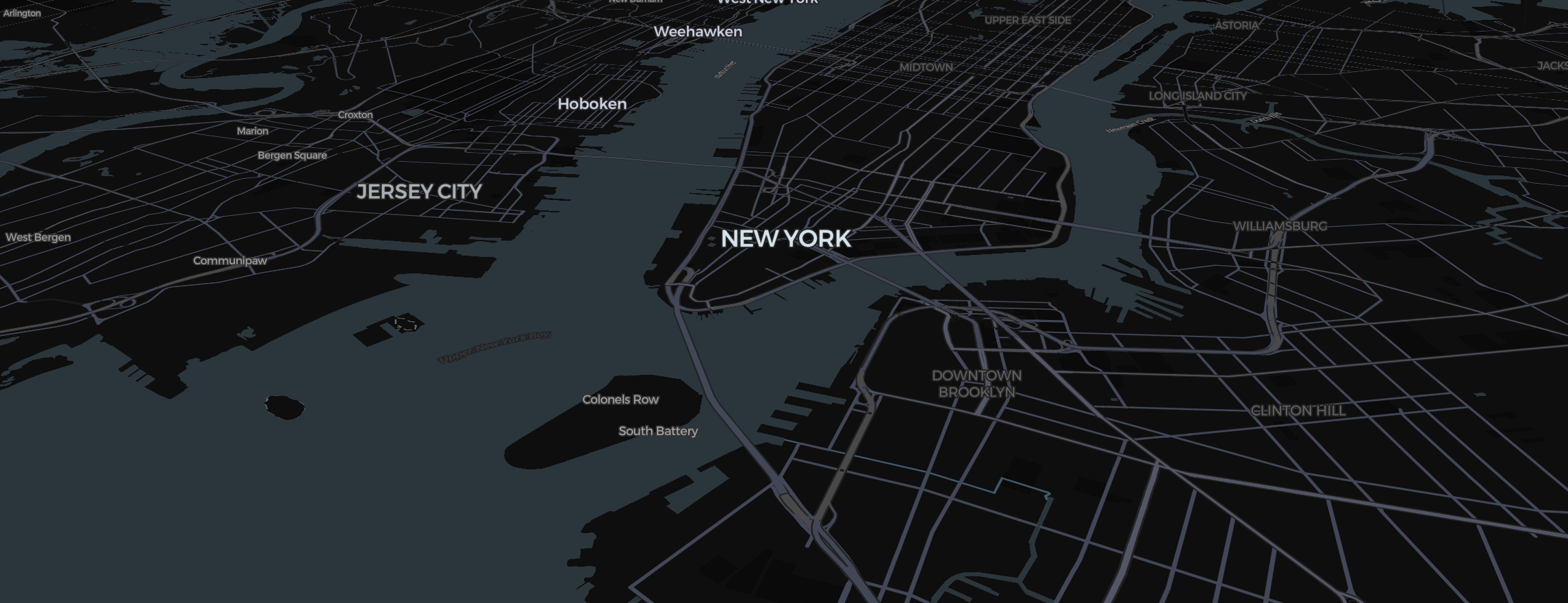
The 360-degree orbit is the quintessential "Cinematic" camera move. In Mapimator, orbiting a 3D mountain or a city landmark is automated, giving you perfect geometric precision that’s almost impossible to achieve by hand.
Step 1: The Orbit Template
Don't draw the circle yourself.
- Click Templates in the header.
- Select "Orbit Around Target".
- Search for your mountain (e.g., "Mount Fuji").
- Choose Your Width: Select how wide you want the orbit to be. A narrower orbit is great for drone-style mountain sweeps.
- Generate: The Studio will create 4-8 slide cards that form a perfect loop.
Step 2: Pitching for Scale
Mountain orbits look best when you can see the elevation.
- Select all the generated slides in your Storyboard.
- Turn on 3D Terrain under View in the map controls, then pitch the view (Right Click + Drag) to see the peak from a lower angle.
- Set the Map Style to Satellite or Terrain for the most realistic textures.
Step 3: Seamless Easing
- Use Smooth Easing for all transition points.
- To create a "Perpetual Orbit" effect, ensure the last slide’s camera position matches the first one.
- Set the Duration of each slide transition to 2.0s or more to avoid motion sickness.
Ready to Export?
High-altitude terrain can be slow to load. Always professional rendering engine before exporting to ensure that the snow caps and rock textures of your mountain are perfectly sharp in the final 4K MP4.
With the Orbit Template, you can transform a simple location into a stunning 3D centerpiece for your next documentary or travel vlog.