
January 25, 2026 · 1 min read
How to Animate Glowing Neon Routes for Night Maps
Replicate the 'Cyberpunk' or 'Night Drive' aesthetic using dark map styles and vibrant route glows.
By Mapimator Editorial#Design#Visual-Effects#Tutorial
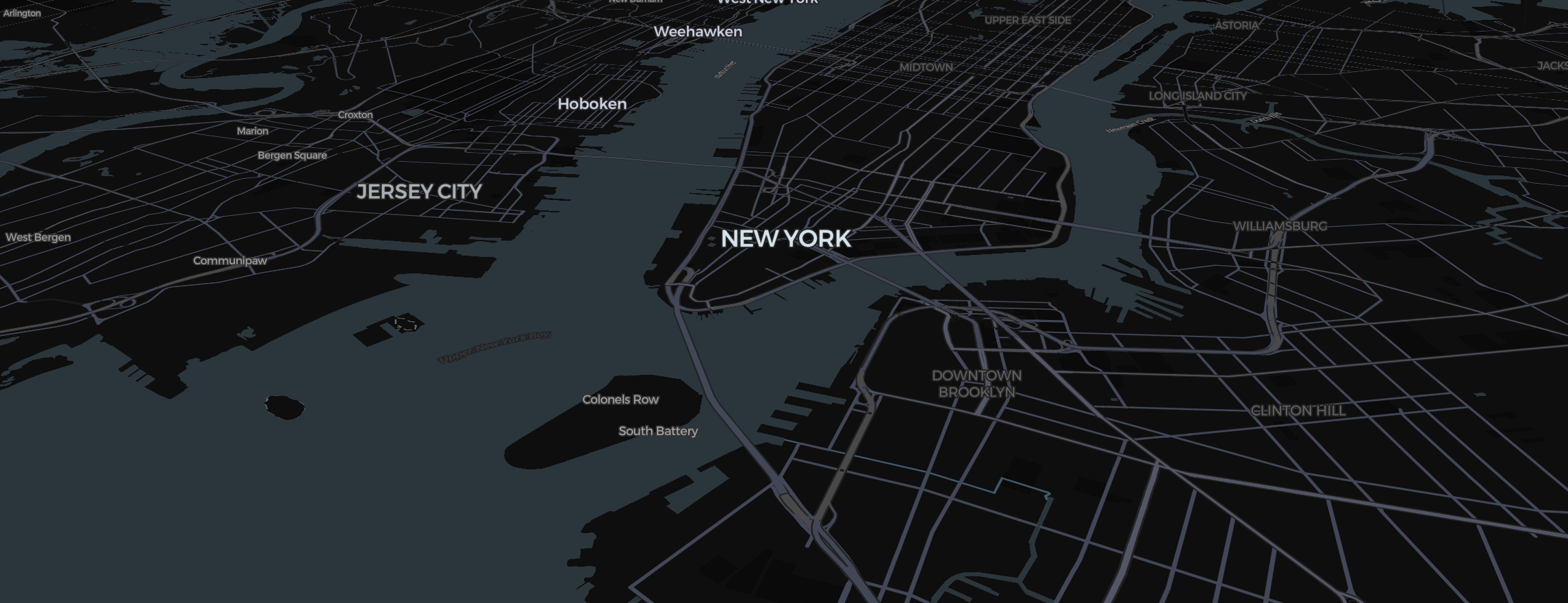
The "Night Map" aesthetic—characterized by dark backgrounds and glowing neon routes—is one of the most popular trends in travel social reels and gaming. In Mapimator, creating this high-contrast look is a two-step process in the Studio.
Step 1: The Darkest Base
To make your routes glow, the map must be dark.
- Open the Style Selector and choose Ink (Dark Matter).
- This style turns the land black and the water a deep navy, while city lights and street networks provide a subtle, technical texture.
- Switch the projection to Flat (Mercator) for that GTA-stylecharacter switch look.
Step 2: The Neon Route
- Color: Select a high-saturation color like Neon Cyan, Toxic Green, or Vibrant Magenta.
- Stroke Width: Increase the width to 4.0 or 5.0. On a dark map, a thicker line creates a natural "glow" because of the way the eye perceives bright colors against black.
- Animation: Set the type to Draw. As the camera glides smoothly across the map, the neon line will "paint" itself across the dark landscape.
Step 3: Glowing Pins
- Use the Dot Style for pins.
- Choose the same neon color as your route.
- Set the animation type to Pulse. This keeps the destination "breathing" and catches the viewer's eye.
The Cinematic Export
Night maps rely on deep blacks and vibrant colors. To ensure your final MP4 doesn't have "banding" or compressed artifacts:
- Export at 1080p or 4K.
- Always allow the Studio to rendering preparation. This ensures that the city lights and neon routes are perfectly loaded into memory before capture.
With these settings, your map animations will have that premium, modern "Night Drive" feel that captures attention instantly.